— i. capture
Put it down before the thought moves on.
Select something in Finder and press Option + Tab, or drag it in. Files, folders, links, images, and text all land on the same small shelf.
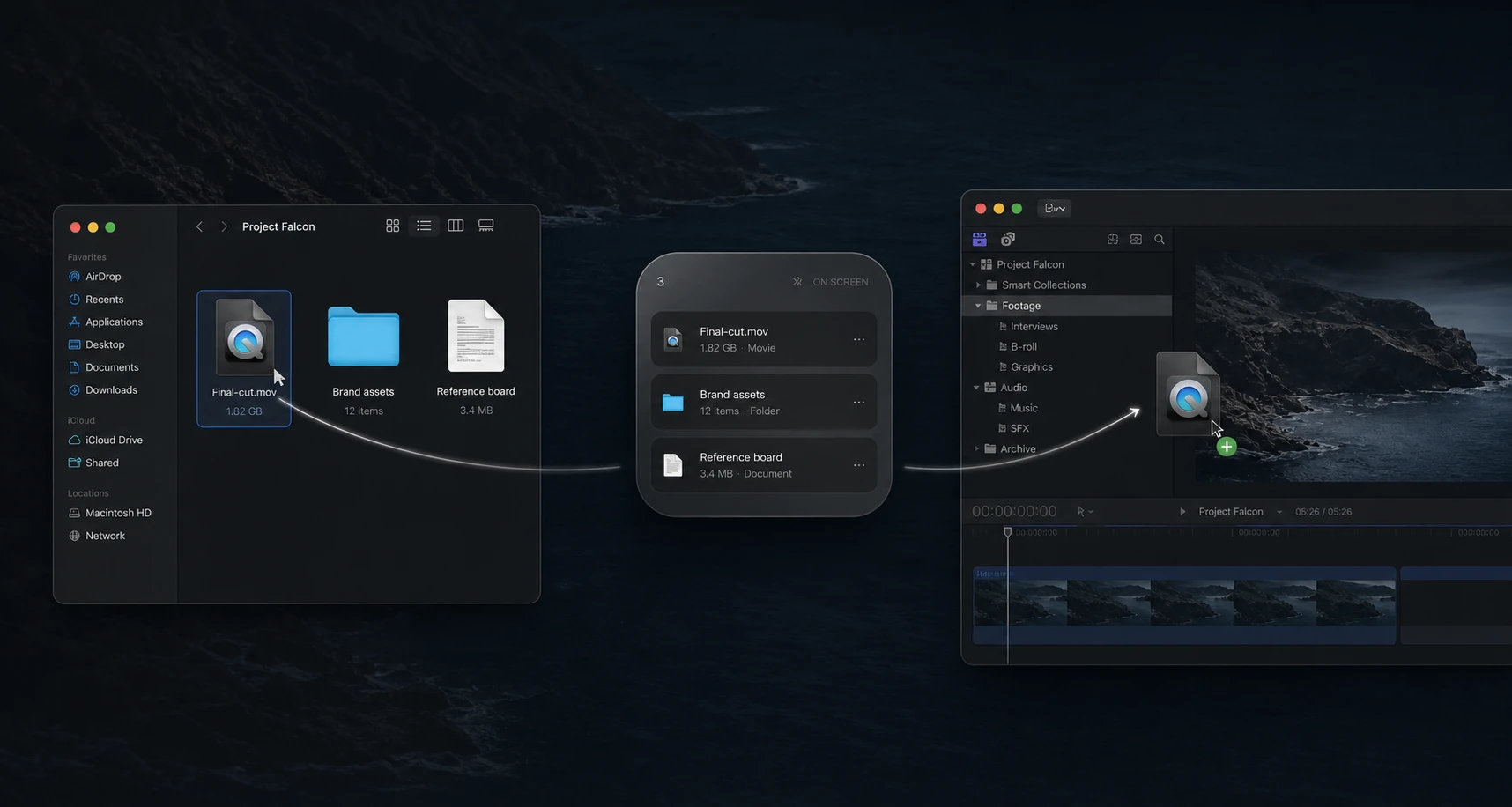
Context keeps files, folders, links, images, and text on a small Mac shelf, so you can move between apps without losing the next thing you need.
Free · Open source · local-first · macOS
— i. capture
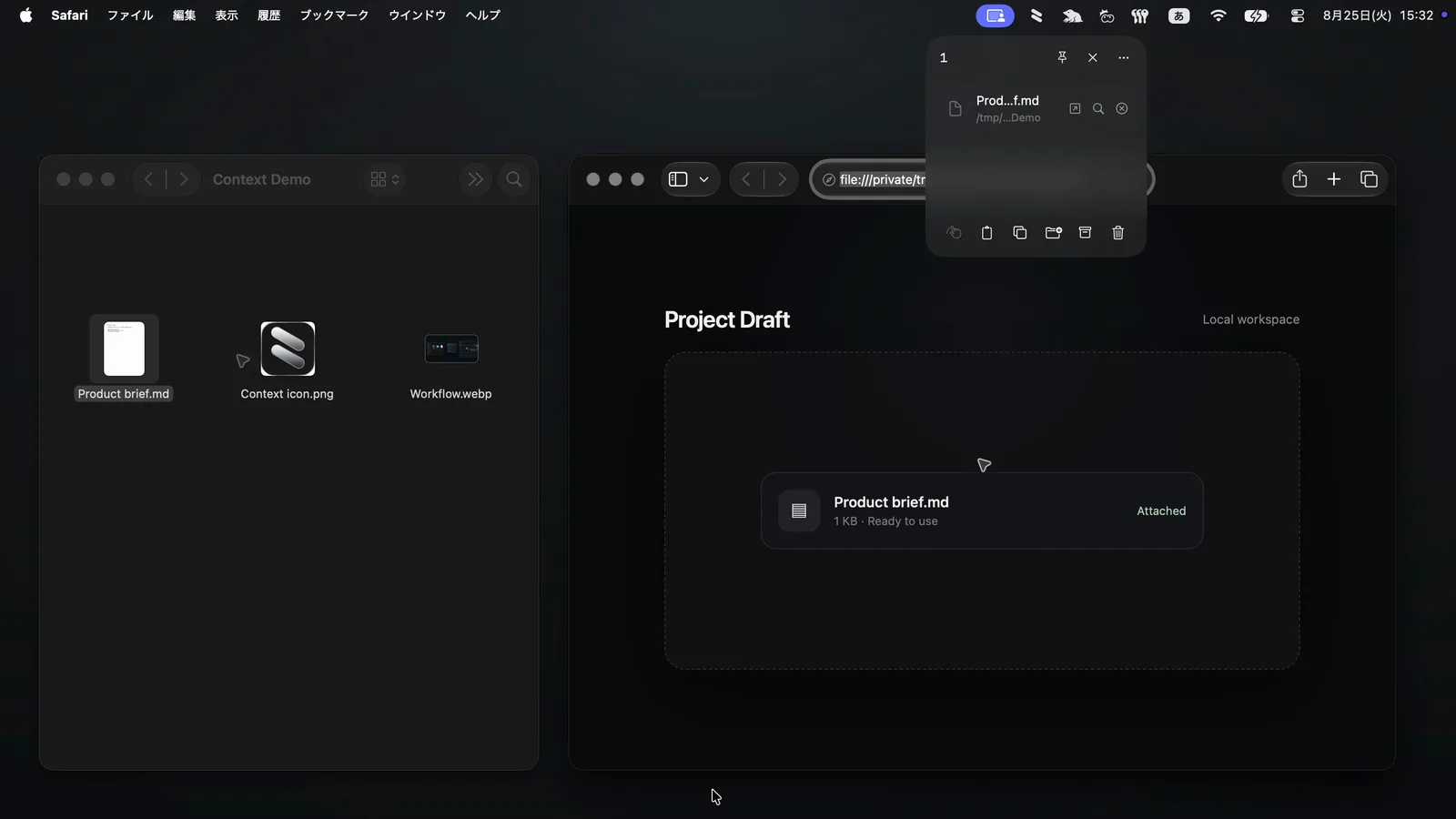
Select something in Finder and press Option + Tab, or drag it in. Files, folders, links, images, and text all land on the same small shelf.
— ii. hold
Context stays above your work without turning into a workspace of its own. It keeps the handoff visible and the rest of your desktop usable.
— iii. place
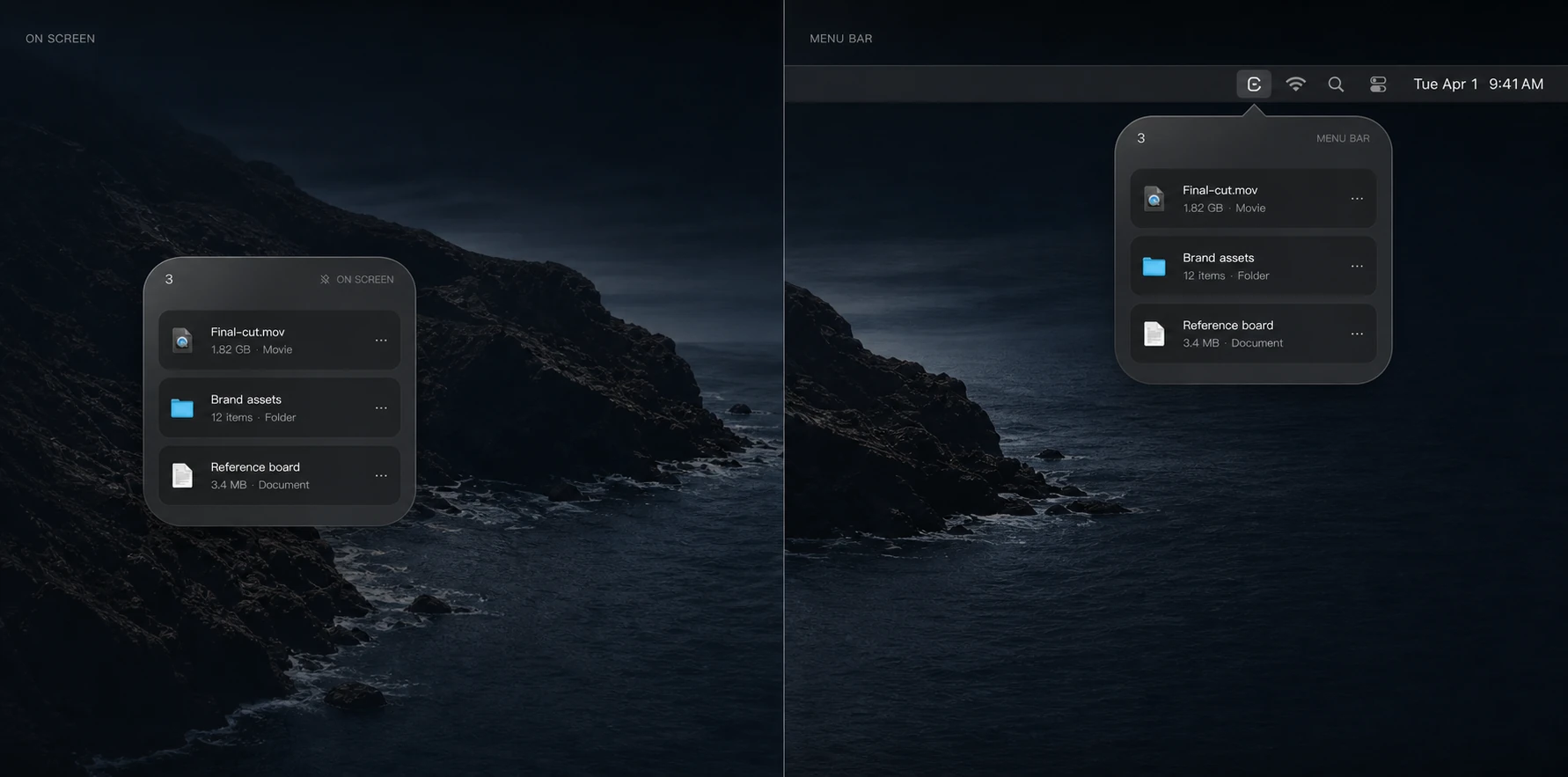
Context starts tucked into the menu bar. Keep the shelf on screen for longer handoffs, or enable the optional Notch Island on supported Macs.
— iv. return
Take one item or a stack and drop it into the app, folder, message, or document that needs it. The originals stay exactly where they were.
— Privacy
Context holds the current shelf in memory and clears it when the app quits. It does not send your files, clipboard contents, or shelf activity anywhere.
— Install
Download Context, open the DMG, then drag the app to Applications.
 Context for macOS
v0.2.0 · macOS 26+ · Apple Silicon & Intel
Context is not yet notarized by Apple. macOS may block it the first time you open it. To continue, open System Settings → Privacy & Security and click “Open Anyway.”
— FAQ
Small handoffs break focus. Context keeps the files, folders, links, images, and text you are about to use in one temporary shelf, ready for the next app.
Files, folders, images, URLs, and text. Finder selections can also be added with Option + Tab.
Items added from Finder remain references to their originals. Data received directly from another app may be stored temporarily in Context's local working area.
No. Removing something from the shelf does not remove the original file from its location.
The shelf and Context-managed temporary copies are cleared. Only your chosen display mode is remembered.
No. There is no Context account, cloud sync, analytics SDK, or hosted work history. The shelf stays on your Mac.
Yes. The menu bar shelf is the default, On Screen remains available, and Notch Island is an optional display mode on supported Macs.
Yes. The current universal build supports both Apple Silicon and Intel Macs running macOS 26 or later.